
How to Compile Models in SFM (Beginner-Friendly Guide)

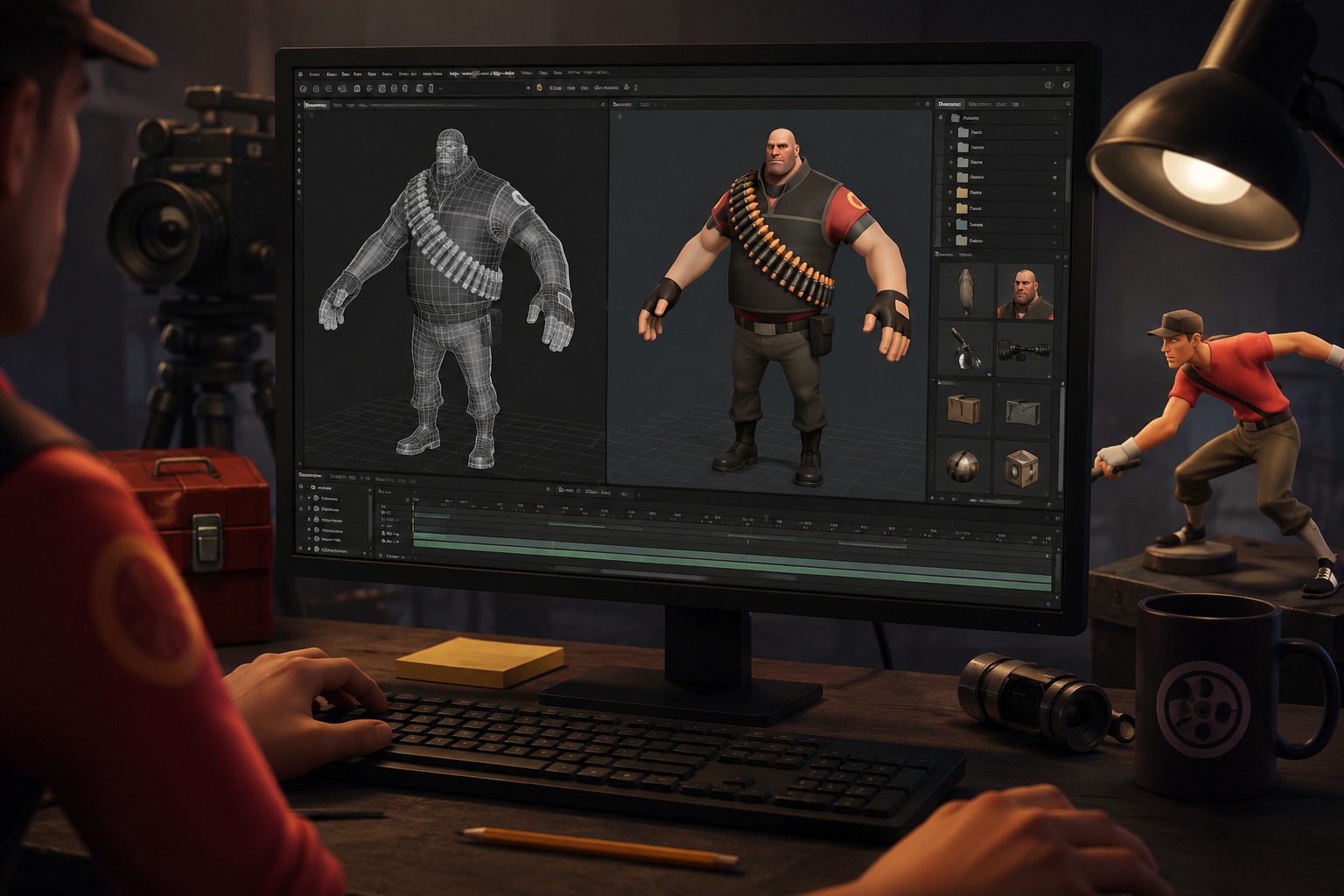
Getting started with Source Filmmaker can feel confusing, especially when you try importing custom models for the first time. Many beginners run into problems like invisible models, missing textures, or compile errors. The good thing is that once you understand the basic workflow, compiling models in SFM becomes much easier.
In this guide, you’ll learn how to compile SFM models step by step using beginner-friendly methods and tools.
What Does Compiling Mean in SFM?
In simple words, compiling is the process of converting raw model files into a format that SFM can understand and use properly. Without compiling, most custom characters, props, or animations will not work inside the software.
People usually compile models in SFM to:
- Import custom characters
- Add assets from Source Engine games
- Fix broken models
- Create animation-ready content
- Use workshop-compatible files
If you want to create professional-looking SFM scenes, learning model compiling is an important skill.
Tools You Need Before Starting
Before compiling a model, make sure you have the right tools installed.
Source Filmmaker
First, install Source Filmmaker through Steam. It already includes some important Source SDK components needed for compiling.
Crowbar
Crowbar is one of the most popular tools used by SFM creators. It helps compile and decompile Source Engine models easily. Beginners prefer it because the interface is simple and it provides useful error logs.
QC File
A QC file is a script that controls how your model compiles. It includes information like:
- Model name
- Texture locations
- Animation settings
- Physics data
If your QC file is incorrect, the model may fail to compile.
Step 1: Organize Your Model Files
Before opening Crowbar, keep all your files properly organized. A normal project folder usually contains:
- SMD or DMX files
- Texture files
- Materials folder
- QC script
Keeping everything clean and organized helps avoid missing texture problems later.
One common mistake beginners make is placing materials in the wrong folder. Always double-check file paths before compiling.
Step 2: Open Crowbar and Select Compile
Launch Crowbar and open the Compile section.
Here you will see options like:
- QC file selection
- Output directory
- Game path configuration
Start by selecting your QC file because this file controls the full compile process.
After that, choose the folder where you want the compiled model files to be saved.
Step 3: Set the Correct Game Path
Now you need to connect Crowbar with your SFM installation folder.
For most users, the path looks like this:
Steam\steamapps\common\SourceFilmmaker
If the game path is incorrect, the compile process may fail immediately.
This is one of the most common issues beginners face.
Step 4: Compile the Model
Once everything is configured:
- Select the QC file
- Verify all paths
- Press the Compile button
Crowbar will now process your files and create important model formats like:
- MDL
- VVD
- PHY
- VTX
If there are no errors, your model has been compiled successfully.
Step 5: Move Files Into the Correct SFM Folders
After compiling, you must place the files inside the correct SFM directories.
Compiled model files usually go here:
usermod\models
Texture and material files usually go here:
usermod\materials
Folder structure matters a lot in SFM. Even a perfectly compiled model may break if files are stored incorrectly.
Step 6: Test the Model Inside SFM
Now open Source Filmmaker and create a new project.
To test the model:
- Open the Animation Set Editor
- Click Add Model
- Search for your compiled model
If everything was done correctly, the model should load properly without missing textures or errors.
You should also test animations and camera movement to make sure the model works smoothly.
Common SFM Compile Errors and How to Fix Them
Most beginners face a few common issues during compiling. Here are the most frequent problems and their solutions.
Missing Textures
This usually happens when material paths are incorrect.
How to fix it:
- Check VMT file paths
- Verify texture folder placement
- Make sure texture names match exactly
Model Not Showing in SFM
Sometimes the model compiles successfully but does not appear inside SFM.
Fix:
- Confirm files are inside the models folder
- Restart SFM after moving files
- Verify the QC model name
QC Errors
Small mistakes in QC scripts can stop the compile process completely.
Fix:
- Check quotation marks
- Verify command syntax
- Ensure all file names are correct
Broken Animations
Animations may look broken if the skeleton or rig is incorrect.
Fix:
- Re-export animations
- Verify bone names
- Use compatible rigs
Tips for Better SFM Compiling
If you want fewer errors and smoother workflow, follow these simple tips:
- Keep project folders organized
- Use simple file names
- Backup original files before editing
- Test models frequently
- Avoid changing compiled MDL files directly
These habits save a lot of time in bigger SFM projects.
Final Thoughts
Learning how to compile models in Source Filmmaker may feel difficult at first, but it becomes easier with practice. Once you understand QC files, folder structure, and Crowbar settings, you can start importing custom characters and creating better animations without major issues.
For beginners, starting with simple models is always the best approach. As your experience grows, you’ll become better at fixing compile errors and optimizing models for professional SFM projects.

Top 10 Best Swimming Pools for Kids in Karachi for Safe Family Fun

Fastest 4G Network in Pakistan: Which Network Comes Out on Top?